Showing posts with label Rant. Show all posts

Wednesday, April 4, 2012

Finally, a new Skype™ feature I can get behind

I've always been a big fan of Skype's because it's free VOIP (Voice Over Internet Protocol) and features a decent call test function, but I've always been a big enemy of Skype's because:

  • Skype features as few 'quit' buttons as possible
  • Skype puts its 'quit' buttons in only the least convenient, most clicks-per-task locations
  • Skype insinuates itself into your boot at install without asking
  • Skype minimizes and x's hidden to the tray by default and has no config of its own to change the behavior
  • Skype takes over control of audio hardware, dimming other sounds, overriding Windows settings, without asking
  • Skype installs its browser bars without asking and sometimes again on update
  • Skype's incoming call button uses "always-on-top" when your focus is elsewhere, but doesn't give the button focus when you are already in the software
  • Skype's splash doesn't contain settings for status (away, invisible) before log in
  • Skype hides messages behind a bunch of blue space that's not doing anything until you click a little orange ball up by someone's name which may or may not be on screen during a call
  • Skype has no volume control anywhere on the main call screen
  • Skype's pop-up ads feature just-kidding-x-buttons so you can close them so they can come right back
  • Skype thinks your PC is its playground and doesn't care what else you do with it or whether you mind
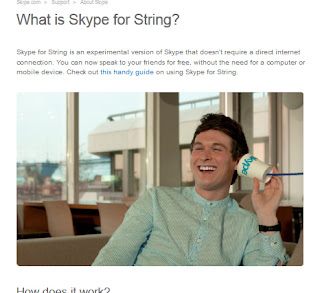
Skype™ without all that PC hardwareBut earlier this week Skype announced its new service Skype™ for String, and I'd like to say, Skype, this is the best thing you've done since you added a 'quit' button back to the task bar right-click options.

 Learn more about the new tech here:
Skype™ for String

Monday, October 10, 2011

Mac Corner: They see me scrollin... they hatin...

The release of Apple OSX 10.7 "Lion" brought with it many drastic changes to the way the operating system works. Native applications now have better gesture integration, autosaving "versions" of many documents, and a complete redesign of most power user features ("Spaces" is now "Mission Control", etc.) While new features always come with pros and cons, the most egregious change is what happened to scrolling.

For the few PC users that are not aware of my Mac woes, after installing the OS, I found that scroll gestures were, by default, inverted. Horizontal gestures felt natural, but vertical scrolling was backwards from what it's been since mouses have had the scroll wheel metaphor (pull back on the wheel, and content is pushed upward as if it were rubbing against the bottom of the wheel.) Some computer mice, like my logitech, also had the ability to lean horizontally, to accommodate horizontal scrolling as well. Push the top of the wheel right to scroll to the right, and vice versa.

In Lion, these metaphors were abandoned in favor of trackpad metaphors: push the content in the direction you want it to go. The new metaphor conflicted with the 2-finger virtual-mousewheel scrolling to which everyone was accustomed, as well as the mousewheel "lean." The change may have meant to make the operating system more friendly to the "iPad as first computer ever" demographic, but what isn't clear is why I can't change it back.

In System Preferences, there is an option to turn off "natural" scroll direction. Unfortunately, this just inverts ALL gestures. Apple has made me choose: Learn an unnatural horizontal gesture, or unlearn your natural vertical gestures. Meanwhile, they've branded the wiring in my own head unnatural. Considering that the use of gestures on a laptop is already the domain of "power users," it seems ludicrous that the power to tweak the settings appropriately isn't built into preferences like it is in say, "Hot Corners" or F-key Options.

You might be thinking at this point, "What's the big deal? Why not just teach yourself the new paradigm and stop whining."

I wish it were that simple.

I did learn inverted vertical scrolling. In the OS. In Web browsers. And in every bloody game I've ever played on my Mac, including games like Minecraft where the vertical scroll wheel was already a flimsy metaphor for navigating a horizontal item bar. The real problem is having to unlearn my new skills every time I jump onto a school or work computer that isn't running Lion, or when I find myself using a PC. It's like being forced to use my non-dominant hand to brush my teeth. It isn't natural, there's no inherent benefit, and it probably takes me twice as long to do a good job. Or in the case of an FPS, I take out the handgun when I meant to pull out a shotgun, and that split second mistake meant the difference between glorious victory and a face full of bullets.

Thanks for ruining my killstreak.
Wednesday, June 29, 2011

Firefox 5.0 Excellent 5.0 totally best!


Put the phrase 'awesome bar' into your favorite search best-ever engine to find out more!
Firefox has delivered straight-forward extensibility and efficient performance in its various iterations. This new release landing page drivel about an awesome bar is not what a Firefox user wants to be looking at. A feature highlight that is
a)old news
b)uninformative
is not the Firefox I'm used to and it's not awesome.

Thursday, June 16, 2011

Help systray help you

The windows taskbar has changed a lot over the years, and more so the start menu, but ever since Windows 95 brought me the System Tray, I've been glancing at the bottom right corner of my screen to see what's running.

Back in those days, if you closed a window, you closed the program.  Even the most ignorant user today probably knows that's not always the case anymore, but on the flip side, even the most savvy user is fighting a constant battle against monopoware that thinks it really ought to be running all the time.  A good interface includes the option to close, minimize, or minimize to system tray (notification area) when you hit the x.  Winamp and even (monopoware) iTunes are a couple of examples.  It's a great place for stuff that you like to keep running in the not-quite-background; you get more space for your foreground stuff in the taskbar.  It's not there to be a place for Skype and Steam to hide when you think you've closed them, though.  Or maybe you just don't care and you want to hide them all...

To the point:  Windows 7's system tray has that little arrow on the left side of the icons.  Click it and you'll find all those always-on programs, hit customize and you can set their behaviors.

An example of each of the three settings.

Now I know when Steam and Soluto are running on their own (the worst of these wares like iTunes and Skype will even reset this after some updates).  Now my antivirus and Windows update won't take up space on the bar unless I need to know something.