Showing posts with label Windows. Show all posts

Wednesday, April 4, 2012

Finally, a new Skype™ feature I can get behind

I've always been a big fan of Skype's because it's free VOIP (Voice Over Internet Protocol) and features a decent call test function, but I've always been a big enemy of Skype's because:

  • Skype features as few 'quit' buttons as possible
  • Skype puts its 'quit' buttons in only the least convenient, most clicks-per-task locations
  • Skype insinuates itself into your boot at install without asking
  • Skype minimizes and x's hidden to the tray by default and has no config of its own to change the behavior
  • Skype takes over control of audio hardware, dimming other sounds, overriding Windows settings, without asking
  • Skype installs its browser bars without asking and sometimes again on update
  • Skype's incoming call button uses "always-on-top" when your focus is elsewhere, but doesn't give the button focus when you are already in the software
  • Skype's splash doesn't contain settings for status (away, invisible) before log in
  • Skype hides messages behind a bunch of blue space that's not doing anything until you click a little orange ball up by someone's name which may or may not be on screen during a call
  • Skype has no volume control anywhere on the main call screen
  • Skype's pop-up ads feature just-kidding-x-buttons so you can close them so they can come right back
  • Skype thinks your PC is its playground and doesn't care what else you do with it or whether you mind
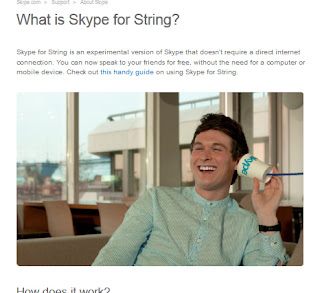
Skype™ without all that PC hardwareBut earlier this week Skype announced its new service Skype™ for String, and I'd like to say, Skype, this is the best thing you've done since you added a 'quit' button back to the task bar right-click options.

 Learn more about the new tech here:
Skype™ for String

Wednesday, September 7, 2011

Anti-virus, no excuse to go without

Windows may come with its own (decent) firewall and malware detector (Defender), but you're not safe unless you a)never go online, b)employ up-to-date anti-virus. For my own Windows 7 pcs, I've had great results and minimal bother from ESET NOD32 for Anti-virus & the ESET Smart Security for its firewall.

I chose ESET because it has a pretty small memory footprint, allowing me to get the most out of my machine, specifically because ESET knows when I'm gaming and tries not to bother me. There are a lot of other things to consider when you choose anti-virus, however, not the least of which is price.

AVG free and Avast are two of the highest rated free anti-virus programs out there, so if you're on a budget, or you need a subscription for that laptop/old/backup PC you bust out every once in a while, consider these.

I could rave about ESET and rant about McAfee all day, but I'd like to highlight a website I've found in my search for the perfect AV software. AV-Comparatives is "an Austrian Non-Profit-Organization, which is providing independent Anti-Virus software tests free to the public." Don't let the broken English scare you away; They've got PDF reports on detection rates, false positives, performance statistics, etc, written concisely with explanations for laymen along the way.

If you were thinking about only going to the internet's most visited sites and hoping to come out unscathed, remember that Facebook messages, YouTube comments, and certainly Yahoo emails can all contain malware, trackers, and viruses. If budget is the issue, check out AVGFree and Avast. If indecision is your issue, spend a few minutes on AV-Comparatives. Whatever you do, don't go without!

Thursday, June 16, 2011

Help systray help you

The windows taskbar has changed a lot over the years, and more so the start menu, but ever since Windows 95 brought me the System Tray, I've been glancing at the bottom right corner of my screen to see what's running.

Back in those days, if you closed a window, you closed the program.  Even the most ignorant user today probably knows that's not always the case anymore, but on the flip side, even the most savvy user is fighting a constant battle against monopoware that thinks it really ought to be running all the time.  A good interface includes the option to close, minimize, or minimize to system tray (notification area) when you hit the x.  Winamp and even (monopoware) iTunes are a couple of examples.  It's a great place for stuff that you like to keep running in the not-quite-background; you get more space for your foreground stuff in the taskbar.  It's not there to be a place for Skype and Steam to hide when you think you've closed them, though.  Or maybe you just don't care and you want to hide them all...

To the point:  Windows 7's system tray has that little arrow on the left side of the icons.  Click it and you'll find all those always-on programs, hit customize and you can set their behaviors.

An example of each of the three settings.

Now I know when Steam and Soluto are running on their own (the worst of these wares like iTunes and Skype will even reset this after some updates).  Now my antivirus and Windows update won't take up space on the bar unless I need to know something.

Monday, June 6, 2011

CDisplay: lighter & easier than paper & ink

If you've got any .cbr/.cbz files on your drive, then you've probably already got a viewer you like.  I've yet to find a bad one, but on the off-chance that your viewer could do more (less?) for you, I'd like to introduce & recommend CDisplay.

CDisplay is a free sequential image viewer.  The application is small and the phrase "easy to use" makes it sound more complicated than it is.  The blank screen you get when you run CDisplay is accompanied by a little tool-tip that tells you everything you need to know to get started.  Everything great about CDisplay is at your fingertips when you right-click, including CDisplay's "Load Next File" (Shift+L) for when you want to go seamlessly from issue 12 to 13.

Before you do anything, hit C for config.  Mouse Control options are presented with a function drop down for each type of mouse button use: single-left click to triple middle-click, which makes a lot more sense to me than vice versa.  The Image Sizing options are pretty comprehensive; On my laptop I use "fit width if oversized" and "suppress for double pages," while on my desktop I also use "fit height" to avoid scrolling.  Finally, program settings include "Japanese mode" (ctrl+J) for manga display.

It's true, there's nothing mindblowing about these features when you compare CDisplay to Comical or iOS Comixology, but accessing and using the customization features of CDisplay is one of the most straight-forward, no-nonsense experiences you can have on a PC today, and with such great focus on allowing you to set the controls that feel natural to you, I promise you'll only configure CDisplay ONCE.

CDisplay, like most if not all of its competition, allows for multiple favorite directories (rather than restrictive single-location libraries a la iTunes), and bookmarks, but this is one of those rare times where non-invasive usage-assumptions really shine: 

Open up CDisplay
Hit R
Resume reading right where you left off.

The whole website.  Note the lack of Comic Sans.
CDisplay's website is another breath of fresh-air.  None of the bloat of sites for wares that exist as platforms for file-pull sales.  Instead? A link.  Maybe you went to get CDisplay and found it wasn't for you (or your OS).  Links to alternative viewers.  These links even include CDisplayEx, which covers more formats than just rar- & zip-based formats .cbr & .cbz as well as a handful of other languages. 

CDisplay isn't great because of what it can do.  It's great because of how it does it.  Setup & config are quick and powerful, and CDisplay's tool-tips and lack of chrome are respectful and refreshing. 

Monday, May 30, 2011

Let's get started: Soluto

Soluto (Windows, Optimization)

A quick glance at our current computing landscape shows an increasing dependency on web-based apps & virtual machines: stuff that's always accessible except when it's not, and stuff that can run on any platform except some where it can't.  As we integrate useful software and plugins into bigger OSs and bulkier browsers, host our data everywhere but locally, and sign-off on background auto-updates, we achieve ease-of-use and convenience but often relinquish control and, perhaps more often than we realize, resources.  More on the horizon, but looming large in the current vista is a new (beta) application to help us manage and educate us: Soluto.

Soluto's mission is 'anti-frustration'.  While some features are more flushed out than others in the current beta, Soluto's most exciting function is a well-designed & informative 'boot-chopper'.  By default, it runs on each system startup (adding a few seconds to boot time by its own measure) and compiles a list of services that run on startup.  This is where Soluto puts msconfig to shame.  Using data from the cloud (read: other Soluto users), it sorts every service it can find into three categories:
  1. No Brainer
  2. Potentially Removable
  3. Cannot be removed with Soluto (yet...)
Once you've handled the no-brainers (iTunes & Skype included) Soluto's smooth interface has level upon level of useful info, including the number of seconds an item adds to boot, a description of the item when available, its disk load, etc.  The PC Genome (Soluto's cloud database) is more than just a sleek Googler for those sneaky browser bar apps and confusing Windows services: Soluto found and (with my consent) disabled a Spybot service running in the background even though I'd used Spybot's interface and msconfig to disable it.

In the end Soluto added 3 seconds to my boot, and shaved 13, resulting in a 2:04 total boot.

Soluto's interface is a breeze.

What's the downside?  None, if you're careful.  My need for Soluto ends with my boot, but Soluto has more to offer, so it keeps running after boot.  In a perfect world, crash-recovery, boot optimization, browser optimization, etc are responsibilities of separate, dedicated apps rather than just another suite to supplant your unwanted suites.  A right-click on the tray icon reveals an 'exit after boot' option if your usage is limited to boot optimization.  If you want to go to the next level, and only run Soluto at your discretion (which presumably limits your contribution to the cloud data), then you'll have to do it yourself; Soluto isn't "able" (or willing?) to disable itself on boot, but a quick trip to msconfig will handle that (boot time: 2min!).  To be fair, Soluto's footprint is pretty tiny.

I look forward to a denser Soluto cloud as it gains maturity and gathers more info.  Do me a favor and edit Microsoft Office Client Virtualization Service's (cvhsvc.exe) description and my 70 boot apps will be fully cataloged!